
CapCut AI Video Generator

CapCut AI Video Generator: Text & Image to Video

Text to video • Image to video • Ready for every channel

AI Model

Prompt *

0/900

Optional audio reference

MP3, MPEG, or WAV, up to 10 MB. Fast does not support M4A.

Aspect Ratio

Video Quality

Video Duration

4s – 15s
8sChoose clip length

What CupCut Can Do

Create AI Videos from Text and Images

Use CapCut AI to generate a new video from a written prompt, animate a still image, and control the model, motion, duration, resolution, and format in one online workspace.

Start with text or an image, choose your video settings, and generate a clip ready to preview and download.

Text to Video: Start with a prompt
01Start with a prompt

Text to Video

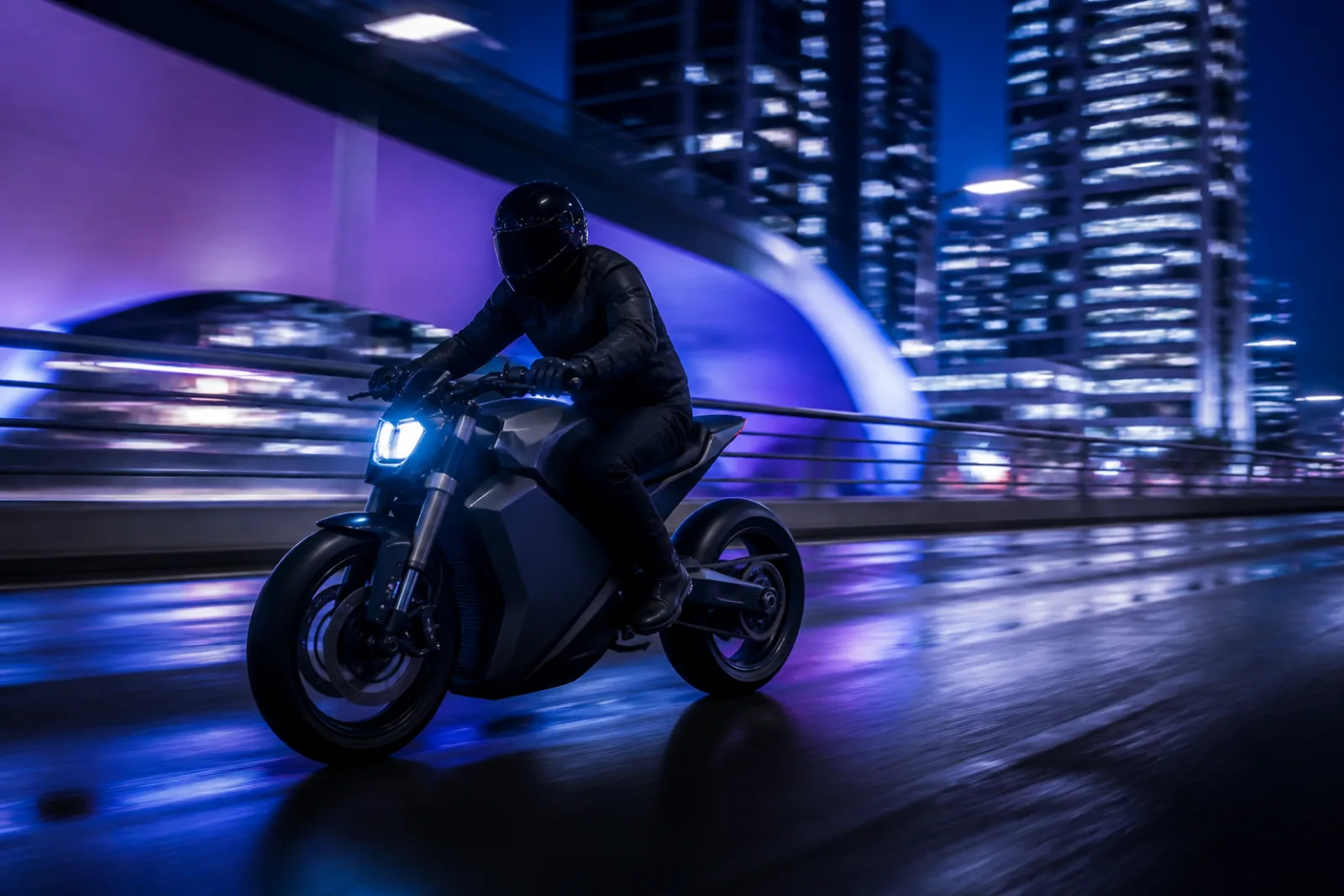
Describe a subject, action, setting, camera movement, and mood. CapCut AI turns your text prompt into an original video scene.

  • Generate video from text
  • Control action and camera movement
  • Create realistic or stylized scenes

Try CapCut AI video

Image to Video: Animate a still image
02Animate a still image

Image to Video

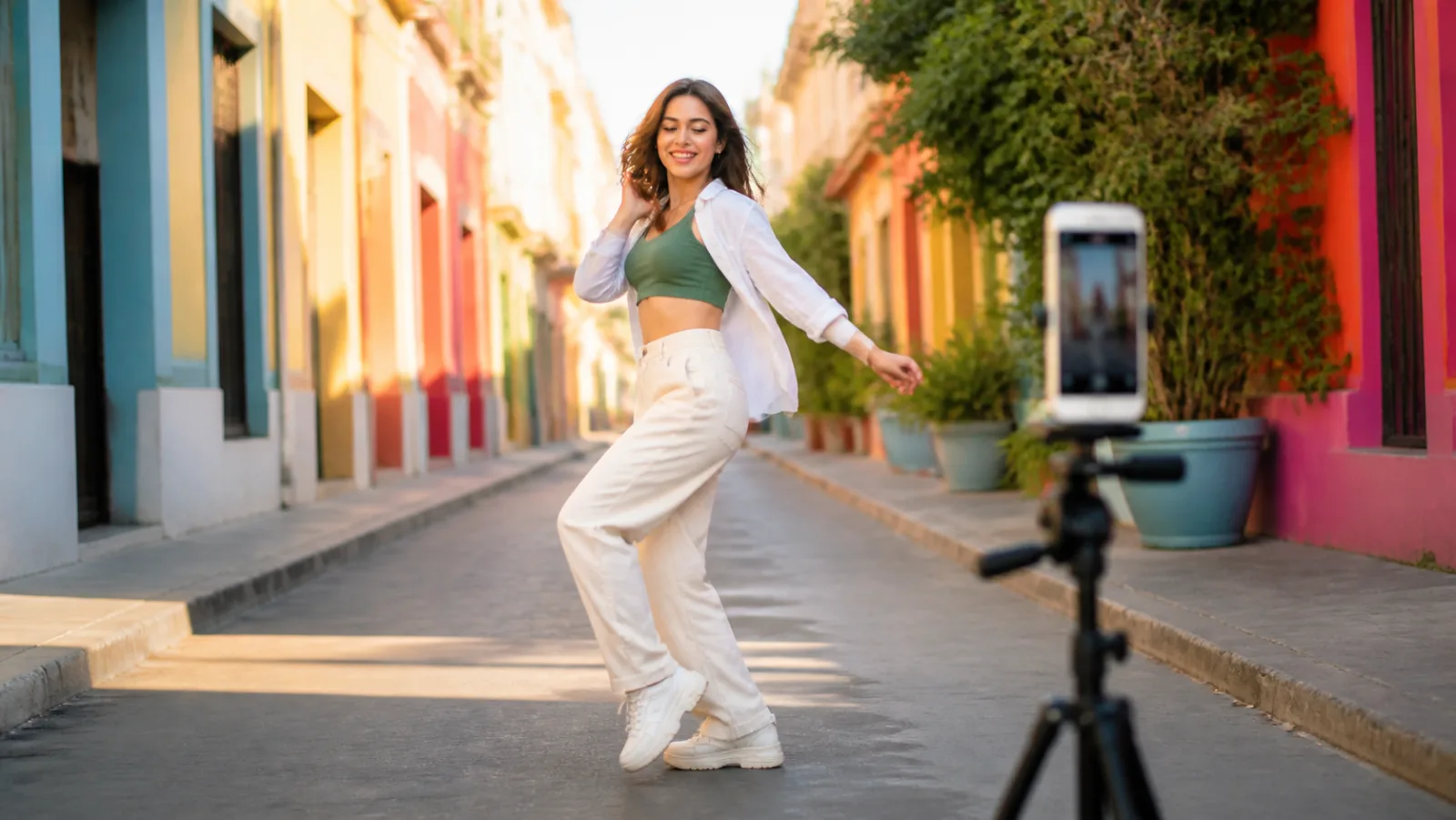
Upload a product photo, portrait, illustration, or landscape and add natural subject movement, camera motion, and atmosphere.

  • Animate photos and artwork
  • Add subject and camera motion
  • Keep the image as your visual guide

Try CapCut AI video

Models and Video Settings: Control the output
03Control the output

Models and Video Settings

Choose an AI video model and adjust duration, resolution, and aspect ratio to match your creative goal, channel, and credit budget.

  • Choose from multiple AI video models
  • Set duration and resolution
  • Create vertical, landscape, or square video

Try CapCut AI video

How to Make a Video with CapCut AI

Create a CapCut AI video online from text or images. Add your idea, choose an AI video model and output settings, then generate, preview, and download your clip.

  1. 01

    Start with text or an image

    Write a prompt with the subject, action, camera movement, and visual style. For image-to-video, upload a clear reference image and describe how you want it to move.

  2. 02

    Choose your model and settings

    Select an AI video model, then set the duration, resolution, and aspect ratio. Choose 9:16 for TikTok, Reels, and Shorts, or 16:9 for YouTube and websites.

  3. 03

    Generate, preview, and download

    Generate your AI video and follow its progress online. Preview the finished clip, download it to your device, or refine the prompt and create another version.

AI video generation in your browser

Why Create CapCut AI Videos with CupCut?

Create CapCut AI videos with the tools that matter: text-to-video, image-to-video, leading AI models, flexible output settings, and online downloads in one workspace.

01

Start Free with Daily Credits

Sign in to receive free daily credits and try the CapCut AI video generator before choosing a paid plan. No credit card is required to get started.

02

Text-to-Video and Image-to-Video

Turn a written prompt into a new video, or animate a photo with image-to-video. Switch between both modes without leaving the generator.

03

Multiple AI Video Models

Choose from Seedance and Veo video models for fast drafts, detailed motion, or higher-resolution output. Pick the model that fits your idea, quality needs, and credit budget.

04

Flexible Video Settings

Control the duration, resolution, and aspect ratio before you generate. Create vertical, landscape, or square videos for social media, ads, product pages, and websites.

05

Prompts with More Control

Guide the subject, action, camera movement, lighting, and mood in plain English. Clear prompt controls help you create videos that better match your scene and format.

06

Generate and Download Online

Create, preview, and download AI-generated videos in your browser. Keep the workflow in one place from the first prompt to the finished clip.

CapCut AI Video Generator Pricing

Compare CupCut credits and plans for CapCut AI video generation. Start free, then choose monthly, annual, or one-time text-to-video and image-to-video options.

Start free
Cancel anytime
Secure payment

Basic

$19.9/month

Perfect for getting started with AI image and video generation

Up to 40 videos
/month
800 credits

Includes:

  • AI image generation
  • AI video generation
  • Unlimited downloads
  • Permanent history

Enterprise

Most Popular
$99.9/month

For teams and high-volume creators

Up to 300 videos
/month
6,000 credits

Everything in Pro, plus:

  • AI image generation
  • AI video generation
  • Unlimited downloads
  • Permanent history
  • Priority generation queue
  • Commercial Use License

Pro

$39.9/month

For regular creators who need more output

Up to 100 videos
/month
2,000 credits

Everything in Basic, plus:

  • AI image generation
  • AI video generation
  • Unlimited downloads
  • Permanent history
  • Priority generation queue
To cancel your subscription, contact support at: support@cup-cut.pro

How Creators Use CupCut in Real Workflows

Straightforward feedback from common video workflows—testing product motion, making social variations, and turning approved images into short clips.

Product videos

Ecommerce Marketer

I usually start with one clean product photo. CupCut helps me test a few motion ideas before we spend time on a full campaign edit.

9:16 social

Short-Form Creator

I use the vertical clips as a starting point for Reels and Shorts. The prompt gets me most of the way there, then I add captions and sound in my usual editor.

Campaign testing

Social Media Manager

When a result feels off, I change one detail instead of rewriting everything. It makes it easier to create a few genuinely different versions for review.

Image to video

Freelance Designer

Clients often send one approved hero image and ask for motion. Image-to-video gives me something useful to present without rebuilding the visual from scratch.

Multiple placements

Small Agency Producer

We can explore a vertical version and a wide version from the same idea. They still need a human review, but the first round moves much faster.

Concept clips

YouTube Creator

I use it for short establishing shots and visual experiments. Generation time varies by model, so the progress and history views are helpful when I am testing several ideas.

Questions Creators Ask Before Generating a Video

Clear answers about prompts, reference images, models, timing, credits, downloads, and what to expect from an AI-generated result.

01Should I use text-to-video or image-to-video?

Use text-to-video when you want the AI to create the whole scene from a written idea. Use image-to-video when you already have a product photo, portrait, illustration, or composition that should guide the finished clip.

02What should I include in a good video prompt?

Describe the subject, one clear action, the setting, camera movement, lighting, and mood. Short prompts can work, but specific motion such as “slow push-in” or “turns toward the camera” gives the model clearer direction.

03Will image-to-video keep my original image exactly the same?

The uploaded image guides the subject, composition, and style, but AI generation can still change small details. Use a clear source image, request simple motion, and review faces, text, logos, and product details before publishing.

04Which AI video model should I choose?

Choose based on the settings and result you need. Fast models are useful for testing ideas, while higher-quality options may support more detail or resolution. The generator shows the available duration, resolution, and credit cost for each choice.

05How long does video generation take?

Timing varies with the selected model, resolution, clip duration, and current demand. CupCut shows progress while the job runs, and the completed result remains available in your history.

06What video lengths and aspect ratios are available?

Available lengths depend on the model and generally range from a few seconds up to 15 seconds. Use 9:16 for TikTok, Reels, and Shorts, 16:9 for YouTube and websites, or 1:1 for square placements.

07What resolution can I generate?

Resolution depends on the selected model. Current options include 480p, 720p, and 1080p, with 4K available on supported models. Check the model settings before generating.

08Can I add a reference audio file?

Supported Seedance models can use a reference audio file. Available formats and multimodal behavior vary by model, so check the audio guidance shown in the generator before uploading.

09How do credits work?

Every generation uses credits, and the required amount depends on the model and settings. The cost is shown before you generate. Free credits let you test the workflow, while paid plans and one-time packs provide more usage.

010What happens if generation fails?

When an eligible generation fails after processing, the interface explains the failure and returns the credits for that attempt automatically. You can adjust the prompt or input and try again.

011Can I use generated videos commercially?

Paid plans include commercial-use rights for generated content. You are still responsible for having permission to use uploaded images, audio, logos, people, and other protected material in the final video.

012Can I use CupCut on my phone?

Yes. CupCut runs in a mobile browser without a separate app. For detailed prompt writing, file management, and reviewing fine visual details, a larger screen may still be more convenient.

Ready to create your first clip?

Start with one clear idea or reference image, choose the format you need, and generate a video you can review before publishing.

Create an AI Video